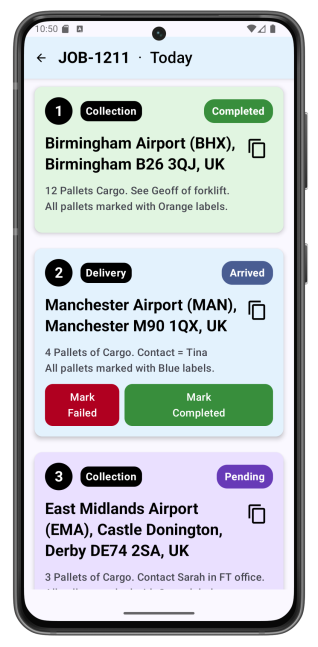
See LoadHub Fleet in action — watch the driver app working in real time.
These videos show exactly how LoadHub Fleet works from a driver's perspective — from logging in to completing a job. Whether you want a quick overview or a full walkthrough, pick the video that suits you.
Quick Demo — 1 minute 40 seconds
The fastest way to see how the driver app works. A driver opens the app, sees their assigned job, and navigates to the delivery using Google Maps — all without typing an address or calling the office.
What's covered:
- Driver views and accesses an assigned job.
- Chained navigation sends the destination to Google Maps automatically
- Navigate button resends the route if needed
- Quick look at the settings page
Detailed Demo — 9 minutes
A full walkthrough of the driver app from login to job complete. Covers every step a driver would take on a working day.
What's covered:
- Driver login (0:00 – 1:00)
- Settings authorisation (1:00 – 3:20)
- Navigating to the job (1:00 – 3:20)
- Starting navigation (3:10)
- Confirming the delivery (4:50)
- Completing the job (5:00)
- Settings deep dive (5:25 – 9:00)
Live Geofencing & Auto-Navigation Demo — 15 minutes
An uncut, real-time demonstration of LoadHub Fleet's automatic waypoint navigation. Watch the app detect each waypoint using GPS geofencing and launch navigation to the next stop automatically — no driver input needed between stops.
What's covered:
- Driver login and route overview (0:00 – 0:45)
- Waypoint 1 passed — first geofence activated (4:38)
- Waypoint 2 passed — auto-navigation to next stop (7:30)
- Waypoint 3 passed — sequential routing continues (8:56)
- Waypoint 4 passed — final destination arrival (14:45)
- Job marked complete — status update shown (15:00)
LoadHub Fleet — the Android app for your drivers
Your drivers are on the road, not at a desk. LoadHub Fleet gives them everything they need to get the job done — without calling the office.
Works without signal
Job details and navigation available even in rural blackspots. Updates sync automatically when connectivity returns.
No manual address entry
Navigates automatically to the next stop when a driver completes one.
Office sees everything in real time
Stop arrivals and completions update your dashboard and live map instantly.
GPS tracking throughout
Full location history for every job, automatically.
Less time on the phone. More loads completed.